Amazing Tricks to Speedup Your Pendrive.
Amazing Tricks to Speedup Your Pendrive.
Pen drives or USB are quite popular in the digital world for instant transfer of data. Using USB flash drives, one can easily transfer large files from one PC to another, from PC to laptop, from laptop to TV, and vice versa. This latest technology has made our work easier than before. In current times, you can move Gigabytes of information into just a tiny pen drive within few seconds.
In recent years, a lot of changes has been made in storage devices. When you compare new pen drives with the older ones, you will notice a considerable high transfer rate in the latest ones. However, there are times when you can get irritated with slow transfer speed of pen drives while copying data in pen drives. Well, this article shall provide you with some tricks using which you can speed up transfer rate of your pen drive.
Factors responsible for data transfer rate:
Before knowing the tricks, we shall have a look at some factors responsible for data transfer rate , and they are as follows.
1.Pen drive ageing: Well, this is common for any device that when it becomes old, the rates gets slower.
2.Type of files: The transfer rate of data also depends on the file type; you might have noticed that songs, videos and documents take very less time in transfer while application files need more time.
3.USB port version: The most popular version of USB is 2.0, and it will give you 35mbps speed. So, if you want fast speed then buy 2.0 version pen drives.
Few tricks to Speedup your pendrive Data Transfer Rate:
1.File system should be NTFS: If you want to Speedup Your Pendrive, then make sure you have NTFS as file system. You can do so by Right clicking on your pendrive and selecting Format,Select NTFS File system, Uncheck Quick Format And Click On Start.
2.Disk errors: To check disk errors go to the properties tab of your pen drive, then select ‘tools’ tab. You will find a ‘check now’ button, click it and then hit ‘start’ to fix the errors. The time taken for scan depends on the size of the pen drive.

3.Device policy: Under properties of your pen drive, select ‘hardware’ tab. Then select USB device from there that will lead you to a pop up window where you need to change settings. You can even have better performance of pen drive by clicking the option under ‘hardware’ tab.
4.Format: This is one of the effective options that many users have tried. When you have used your pen drive for quite a long time, you can speed it up by formatting the device.
The above mentioned were few tricks though big advantages for the speeding of your pen drive. Carefully test your pen drive with the factors given above, and then follow the tricks to Speedup Your Pendrive to a greater extent. In addition to this, you should keep checking for these aspects regularly, say twice or thrice in a month.
The above mentioned were few tricks though big advantages for the speeding of your pen drive. Carefully test your pen drive with the factors given above, and then follow the tricks to Speedup Your Pendrive to a greater extent. In addition to this, you should keep checking for these aspects regularly, say twice or thrice in a month.
Create Windows 8 Bootable Pendrive – How to Guide
Create Windows 8 Bootable Pendrive – How to Guide
There are number of ways for installing an operating system to your computer. Most of the people do it by usingbootable CD/DVD of windows. But we really don’t need to install windows very frequently and because of this , it is so difficult to put this bootable disc on safe place and remember where you have kept it when needed.
Also , number of times when you are installing window you see some error saying that some of the necessary installation file is missing from the disc and setup can not be continued. All this happens because of scratches present on disc surface since disc is too old to use.

Apart from all these , Not all Computers have working CD or DVD Drives. This creates a big issue for those who wantto install operating system via Disc method,So today here i bring a easy tutorial to Create Windows 8 BootablePendrive .
How to Create Windows 8 Bootable Pendrive:
Step 1 :Download Windows 7 USB/DVD download tool and install it.
This tool is available for free from Microsoft Corporation as well so you can get it from there too. Despite its name, this tool works with Windows 8 ISOs as well. You can use this tool for any version of Windows.

Step 2:After downloading and installing the tool, Run it , now you need to Browse and give the path where the ISO file is located in your computer.
Step 3:Now select whether you want to create a bootable DVD for windows or you want it to be a bootablependrive. Here you need to select USB device because you want to make bootable pendrive.
Step 4: Browse and select the pendrive which you want to make bootable. Make sure that the pendrive has atleast 4 gb free . Now click on Begin Copying.

Step 5:
Once you begin copying , the tool will start creating bootable Windows 8 USB installer flash drive using theWindows 8 iso. Let this process complete , lastly when you see the message “Bootable USB Device created successfully”, you can restart your PC and boot from the USB drive.
Hope this tutorial will help you to Create Windows 8 Bootable Pendrive
4G-Tele Innovations >>>>ScienceFactsBlog
4G-Tele Innovations
from Science Facts Blog
In telecommunication systems, 4Gis the fourth generation of mobile phone mobile communication technology standards. It is a successor to the third generation (3G) standards. A 4G system provides mobile ultra-broadband Internet access, for example to laptops with USB wireless modems, to smartphones, and to other mobile devices. Conceivable applications include amended mobile web access, IP telephony, gaming services, high-definition mobile TV, video conferencing, 3D television, and cloud computing.
Two 4G candidate systems are commercially deployed: the Mobile WiMAX standard (first used in South Korea in 2006), and the first-release Long Term Evolution (LTE) standard (in Oslo, Norway and Stockholm, Sweden since 2009). It has however been debated if these first-release versions should be considered to be 4G or not, as discussed in the technical definition section below.
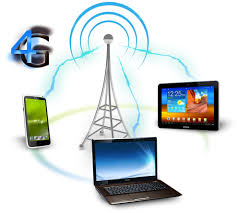 In the United States, Sprint (previously Clearwire) has deployed Mobile WiMAX networks since 2008, and MetroPCS was the first operator to offer LTE service in 2010. USB wireless modems have been available since the start, while WiMAX smartphones have been available since 2010, and LTE smartphones since 2011. Equipment made for different continents is not always compatible, because of different frequency bands. Mobile WiMAX is currently (April 2012) not available for the European market.
In March 2008, the International Telecommunications Union-Radio communications sector (ITU-R) specified a set of requirements for 4G standards, named the International Mobile Telecommunications Advanced (IMT-Advanced) specification, setting peak speed requirements for 4G service at 100 megabits per second (Mbit/s) for high mobility communication (such as from trains and cars) and 1 gigabit per second (Gbit/s) for low mobility communication (such as pedestrians and stationary users).
Since the first-release versions of Mobile WiMAX and LTE support much less than 1 Gbit/s peak bit rate, they are not fully IMT-Advanced compliant, but are often branded 4G by service providers. On
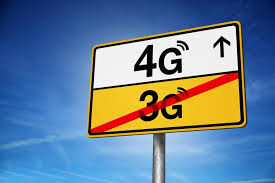 December 6, 2010, ITU-R recognized that these two technologies, as well as other beyond-3G technologies that do not fulfill the IMT-Advanced requirements, could nevertheless be considered "4G", provided they represent forerunners to IMT-Advanced compliant versions and "a substantial level of improvement in performance and capabilities with respect to the initial third generation systems now deployed".
Mobile WiMAX Release 2 (also known as WirelessMAN-Advancedor IEE 802.16m') and LTE Advanced (LTE-A) are IMT-Advanced compliant backwards compatible versions of the above two systems, standardized during the spring 2011, and promising speeds in the order of 1 Gbit/s. Services are expected in 2013.
As opposed to earlier generations, a 4G system does not support traditional circuit-switched telephony service, but all-Internet Protocol (IP) based communication such as IP telephony. As seen below, the spread spectrum radio technology used in 3G systems, is abandoned in all 4G candidate systems and replaced by OFDMA multi-carrier transmission and other frequency-domain equalization (FDE) schemes, making it possible to transfer very high bit rates despite extensive multi-path radio propagation (echoes). The peak bit rate is further improved by smart antenna arrays for multiple-input multiple-output (MIMO) communications.
The term "generation" used to name successive evolutions of radio networks in general is arbitrary. There are several interpretations, and no official definition has been made despite the consensus behind ITU-R's labels. From ITU-R's point of view, 4G is equivalent to IMT-Advanced which has specific
 performance requirements as explained below. According to operators, a generation of network refers to the deployment of a new non-backward-compatible technology. The end user expects the next generation of network to provide better performance and connectivity than the previous generation. Meanwhile, GSM, UMTS and LTE networks coexist; and end-users will only receive the benefit of the new generation architecture when they simultaneously: use an access device compatible with the new infrastructure, are within range of the new infrastructure, and pay the provider for access to that new infrastructure.
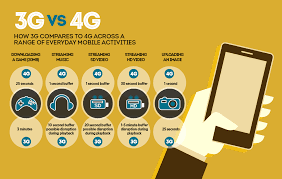 New mobile generations have appeared about every ten years since the first move from 1981 analog (1G) to digital (2G) transmission in 1992. This was followed, in 2001, by 3G multi-media support, spread spectrum transmission and at least 200 kbit/s peak bit rate, in 2011/2012 expected to be followed by "real" 4G, which refers to all-Internet Protocol (IP) packet-switched networks giving mobile ultra-broadband (gigabit speed) access.
While the ITU has adopted recommendations for technologies that would be used for future global communications, they do not actually perform the standardization or development work themselves, instead relying on the work of other standards bodies such as IEEE, The WiMAX Forum and 3GPP.
In mid-1990s, the ITU-R standardization organization released the IMT-2000 requirements as a framework for what standards should be considered 3G systems, requiring 200 kbit/s peak bit rate. In 2008, ITU-R specified the IMT-Advanced (International Mobile Telecommunications Advanced) requirements for 4G systems.
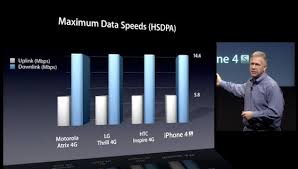
The fastest 3G-based standard in the UMTS family is the HSPA+ standard, which is commercially available since 2009 and offers 28 Mbit/s downstream (22 Mbit/s upstream) without MIMO, i.e. only with one antenna, and in 2011 accelerated up to 42 Mbit/s peak bit rate downstream using either DC-HSPA+ (simultaneous use of two 5 MHz UMTS carrier)or 2x2 MIMO. In theory speeds up to 672 Mbit/s is possible, but has not been deployed yet. The fastest 3G-based standard in the CDMA2000 family is the EV-DO Rev. B, which is available since 2010 and offers 15.67 Mbit/s downstream.
 This article uses 4G to refer to IMT-Advanced (International Mobile Telecommunications Advanced), as defined by ITU-R. An IMT-Advanced cellular system must fulfill the following requirements:
from Science Facts Blog
In telecommunication systems, 4Gis the fourth generation of mobile phone mobile communication technology standards. It is a successor to the third generation (3G) standards. A 4G system provides mobile ultra-broadband Internet access, for example to laptops with USB wireless modems, to smartphones, and to other mobile devices. Conceivable applications include amended mobile web access, IP telephony, gaming services, high-definition mobile TV, video conferencing, 3D television, and cloud computing.
Two 4G candidate systems are commercially deployed: the Mobile WiMAX standard (first used in South Korea in 2006), and the first-release Long Term Evolution (LTE) standard (in Oslo, Norway and Stockholm, Sweden since 2009). It has however been debated if these first-release versions should be considered to be 4G or not, as discussed in the technical definition section below.
In March 2008, the International Telecommunications Union-Radio communications sector (ITU-R) specified a set of requirements for 4G standards, named the International Mobile Telecommunications Advanced (IMT-Advanced) specification, setting peak speed requirements for 4G service at 100 megabits per second (Mbit/s) for high mobility communication (such as from trains and cars) and 1 gigabit per second (Gbit/s) for low mobility communication (such as pedestrians and stationary users).
Since the first-release versions of Mobile WiMAX and LTE support much less than 1 Gbit/s peak bit rate, they are not fully IMT-Advanced compliant, but are often branded 4G by service providers. On
Mobile WiMAX Release 2 (also known as WirelessMAN-Advancedor IEE 802.16m') and LTE Advanced (LTE-A) are IMT-Advanced compliant backwards compatible versions of the above two systems, standardized during the spring 2011, and promising speeds in the order of 1 Gbit/s. Services are expected in 2013.
As opposed to earlier generations, a 4G system does not support traditional circuit-switched telephony service, but all-Internet Protocol (IP) based communication such as IP telephony. As seen below, the spread spectrum radio technology used in 3G systems, is abandoned in all 4G candidate systems and replaced by OFDMA multi-carrier transmission and other frequency-domain equalization (FDE) schemes, making it possible to transfer very high bit rates despite extensive multi-path radio propagation (echoes). The peak bit rate is further improved by smart antenna arrays for multiple-input multiple-output (MIMO) communications.
The term "generation" used to name successive evolutions of radio networks in general is arbitrary. There are several interpretations, and no official definition has been made despite the consensus behind ITU-R's labels. From ITU-R's point of view, 4G is equivalent to IMT-Advanced which has specific
Background
The nomenclature of the generations generally refers to a change in the fundamental nature of the service, non-backwards-compatible transmission technology, higher peak bit rates, new frequency bands, wider channel frequency bandwidth in Hertz, and higher capacity for many simultaneous data transfers (higher system spectral efficiency in bit/second/Hertz/site).While the ITU has adopted recommendations for technologies that would be used for future global communications, they do not actually perform the standardization or development work themselves, instead relying on the work of other standards bodies such as IEEE, The WiMAX Forum and 3GPP.
In mid-1990s, the ITU-R standardization organization released the IMT-2000 requirements as a framework for what standards should be considered 3G systems, requiring 200 kbit/s peak bit rate. In 2008, ITU-R specified the IMT-Advanced (International Mobile Telecommunications Advanced) requirements for 4G systems.
The fastest 3G-based standard in the UMTS family is the HSPA+ standard, which is commercially available since 2009 and offers 28 Mbit/s downstream (22 Mbit/s upstream) without MIMO, i.e. only with one antenna, and in 2011 accelerated up to 42 Mbit/s peak bit rate downstream using either DC-HSPA+ (simultaneous use of two 5 MHz UMTS carrier)or 2x2 MIMO. In theory speeds up to 672 Mbit/s is possible, but has not been deployed yet. The fastest 3G-based standard in the CDMA2000 family is the EV-DO Rev. B, which is available since 2010 and offers 15.67 Mbit/s downstream.
IMT-Advanced requirements

- Be based on an all-IP packet switched network.
- Have peak data rates of up to approximately 100 Mbit/s for high mobility such as mobile access and up to approximately 1 Gbit/s for low mobility such as nomadic/local wireless access.
- Be able to dynamically share and use the network resources to support more simultaneous users per cell.
- Using scalable channel bandwidths of 5–20 MHz, optionally up to 40 MHz.
- Have peak link spectral efficiency of 15 bit/s/Hz in the downlink, and 6.75 bit/s/Hz in the uplink (meaning that 1 Gbit/s in the downlink should be possible over less than 67 MHz bandwidth).
- System spectral efficiency of up to 3 bit/s/Hz/cell in the downlink and 2.25 bit/s/Hz/cell for indoor usage.
- Smooth handovers across heterogeneous networks.
- The ability to offer high quality of service for next generation multimedia support.
- LTE Advanced standardized by the 3GPP
- 802.16m standardized by the IEEE (i.e. WiMAX)
Boost Your PC performance-How to Guide
Boost Your PC performance-How to Guide
It is frustrating, when you sit down to work, doing something important, and your computer takes long processing time for every possible instruction you give. A great amount of dissatisfaction is felt when these electronic devices work slow. The mobile phones and the computers are the two devices where the user wants results with the click of a button and in a fraction of a second.

Over a period of time the speed of these devices specially computers go very slow. A variety of reasons that can be traced for Poor performance are:
- Hard drive space not enough
- Too many unused programs on the disk
- Outdated versions of the operating system
- Outdated version of the drivers installed
Tips To Boost Your PC performance
There are lots of ways to Boost Your PC performance and improve the performance even without changing the hardware. One of the biggest and the common reason for a slow PC is the presence of virus, a malicious programthat affects your PC speed. The virus eats your PC speed by using the computer resources and it also corrupts the system hardware and its software. Installing a good antivirus or even installing some basic antivirus would surely improve the speed and would accelerate the speed.
Having lots of load on your hard disk drive also slows the speed of your PC. The PC needs 5GB of free space to work and if you do not have then the speed is affected. The solution in such scenario is simple which is either to remove the unwanted files or transfer them to any other external hard disk especially the audio, video and the image files that occupy a lot of space.
Having too many shortcuts or having too many unused icons on the desktop or unused files all are substantial reasons for a slow PC. It is essential to reduce this clutter by deleting it. There is always a set of junk files created when you work on the internet especially when you download files, install programs or even when you uninstall programs. It is extremely essential to remove these junk files once the task is done to ensure better performance.
Disk defragmentation utility in the windows operating system is one of the best ways to improve your systemperformance. It is seen that over a period of time you perform certain activities like creating a file, modifying a file or deleting a file due to which your files get scattered on the disk. It becomes time consuming for the system to retrieve such files so the disk defragmentation utility enables to fragment the scattered file. It can be used once in a week for better performance
The disk cleanup utility can also be used to clean all the unused and unwanted temporary files created at the time of using the internet. Also it cleans all the files in the trash that are no longer required. So implementing some of the few tips mentioned above can surely give you a better PC performance.
How to Retrieve deleted messages from devices
How to Retrieve deleted messages from devices\\
Smartphones have taken over the market of gadget by storm in the past recent years. Gone those days when people used their handsets only for calling and texting, now smartphones have become an alternate for laptops and PCs. But today also we have the fear of losing important data like contacts, sms, photos and other important files, to help the users get rid of this fear smartphones have different apps and back up options to keep their data safe and retrievable.

People using smartphones at times delete some very important messages by mistake and later realise that they should not have been deleted. Finally developers have come up with various ways to recover your deleted messages. Although we delete text messages, numbers, and call log from the device the sim card still contains the files and technically speaking don’t delete it permanently.
Sim cards are just like mass storage medium and don’t immediately delete the matter from their memory. In this article we would discuss and the ways to Retrieve deleted messages or either save them elsewhere.
Tips and Techniques Retrieve deleted messages
- If your text messages are stored on to the sim card, a smart move is to download a Sim card recovery program through which the user can retrieve deleted message back on to the device. Data Doctor Recovery app is an easy to use recovery program that helps you restoring all your deleted text messagesto inbox, outbox or even saved messages from the even a defective SIM card.
- If you are an Android user – File Expert is a wonderful file manager’s app, Apart from accessing local files, data and applications on your handset, it also enables you to restore deleted text messages, you just have to manage the software step by step and you can archive your text messages.
- For iOS user – Document 2 Free file manager is one of best apps to manage and back up your data and restore data back to your handset which would also include deleted text messages.
- Users can download FExplorer, Which is extremely efficient with recovering messages. It comes with step by step instructions to help guide you through the process.
- Another way to Retrieve deleted messages is from the open system folder which stores all your messages whether inbox or outbox and even your deleted messages and ensures to keep an account of your media in the mobile phone.
- Users can even opt for data back-up applications and cloud services like Drop Box , iCloud for the Android and iOS platforms respectively or by open sources known as third party applications which actually helps youto retrieve important text messages
So if you are looking for deleted messages on the device you need not worry as this major problem can be solved using the different tools and apps that can downloaded through the Apps store provided with every OS platform. We hope that the tips and suggestion shared through this article may have helped in solving your problem of losing important messages forever. Although not every technique mentioned here might work so you may have to go for other options but with different apps and techniques available you would never loose on your messages anymore.
How to Run Android games and applications on PC
How to Run Android games and applications on PC
Android is by far the best mobile operating system as it comes with a lot of amazing games and applications. Sometimes, we want to play that games on our PC but some of these apps and games which are available at Google Play Market are not available for Windows and Mac operating systems. So, what should one do??
Today, in this tutorial we are going to tell you how you can Run Android games and applications on PC. All you will need is a software which is known as Bluestacks.

Bluestacks in an Android emulator which will help us to Run Android games and applications on PC. You can have the perfect Android experience on your Windows and Mac Operating system using Bluestacks.
How to Install Bluestacks
Step 1: First of all you need to download Bluestacks. Click here to download Bluestacks for your Windows or Mac Operating systems.
Step 2: Once downloaded, install it using the executable file. You will see a couple of steps in the installation wizard. Follow these steps and installation will be continued.
Once the installation is done, Bluestacks icon will be available on your desktop.
Once the installation is done, Bluestacks icon will be available on your desktop.
Run Android games and applications on PC
Once you have downloaded and installed Bluestacks, the next thing you need to do is open Bluestacks and follow the steps mentioned below:-
Step 1: When you will run the Bluestacks for the first time you will be asked to insert your Google Account details. Insert the Google Account details so that, that account can be synced with Google Play market.
Step 2: Once your account is synced you are ready to go. Open the home of Bluestacks by clicking on Bluestacksicon and you will see a search field there. Type and name of app or game there.
Let me explain you this with the help of an example:- In the Search field enter “Whats App” (without quotes).
You will see What’s App on the homepage and will also see an Install Button present there. Click on Install button and the app will start downloading. The download time will take depending on your internet’s speed.
Let me explain you this with the help of an example:- In the Search field enter “Whats App” (without quotes).
You will see What’s App on the homepage and will also see an Install Button present there. Click on Install button and the app will start downloading. The download time will take depending on your internet’s speed.
Step 3: Now open the app. When you will open the app for the first time you will be asked to enter your mobile number. Provide correct mobile number as this number will get a verification code which will be used to authenticate your What’s app account. Now you have verified the account you can easily use What’s app from your computer.
If you want to see which applications are installed on your system, you can open the “My Apps” area and see all the apps which are present on your system. Open the “Top Charts” section to see the apps which are being most downloaded by people on the Google Play market. You can even sync apps from your PC to your Android smartphone or from your Android smartphone to your PC using Cloud Connect.
Top 10 Unknown Google tricks
Top 10 Unknown Google tricks
Google is the Proclaimed king among all search engines present on the internet. Among all the web based search engines, Google stands out because of its high speed and simplicity.

Everyone is familiar with the web applications provided by Google. Some of these are the Gmail, Google Drive, Google app store and a lot more. But little do people know about some very handy tricks that come along with this impeccable search engine.
Top 10 Unknown Google tricks of all times:
1. Definition: there is no longer the need to type a word and then visit dictionaries online to find its meaning. Using this trick, all you need to do is simply write “define” followed by the word whose meaning you want to know.
You will be amazed to see that the meaning of the word, along with its synonym and antonym will be displayed on the search engine. For instance, type “define reach” and then press enter. The meaning of the word will get displayed on your screen.
2. Phone number lookup: it is now possible to trace mobile number by simply typing the full number along with the area code. This will display the address as well as the name of the person under whose name the number is registered.
3.Local search: you can now find local restaurants and other landmarks with this trick. Simply go to “Google visit” and type the name of the area and the place which you want to find. It is capable of displaying all local landmarks and places.
4.Translate: the “Google language tool” comes very handy while translating text, words, a fully fledged web page or document on the internet.
5.Find movies and weather: All you need to do is type “movies” or “weather” in the search box followed by the area code or name of the state in order to display corresponding information regarding it. For instance, if you type “weather 12345”, weather conditions of the corresponding location will be displayed. Also, on typing “movies 12345”, the details of all the movies currently running at that place along with number of shows will get displayed.
6.Paged linked to you: You can now find the web pages and links that are connected with your blog or website. Simply type “link” followed by the URL of your website and you will get a list of all the pages connected with your website.
7.Tracking airline flights and packages: this is another handy trick. You can now find the arrival time and status of a flight by simply entering the name of the airline and corresponding flight number.
8.Calculator: you can use the Google search engine as a real time calculator as well. For instance, if you will type 25+25 in the search box, 50 will get displayed.
9.Stocks: all you need to do is type the stock symbol on Google and you will get information about stock rates, links as well as charts. For instance, to know about the stock details of “Microsoft”, you have to write “msft” on Google.
10.Finding PDF results only: to get results matching only a certain file type, simply type “fileType:” after your search. Online manuals can be found using this trick from Google.
I Hope this will help you in Future.


+(1)(1).png)